
What Your Level App's Degrees Mean (Left, Right, and 0°)
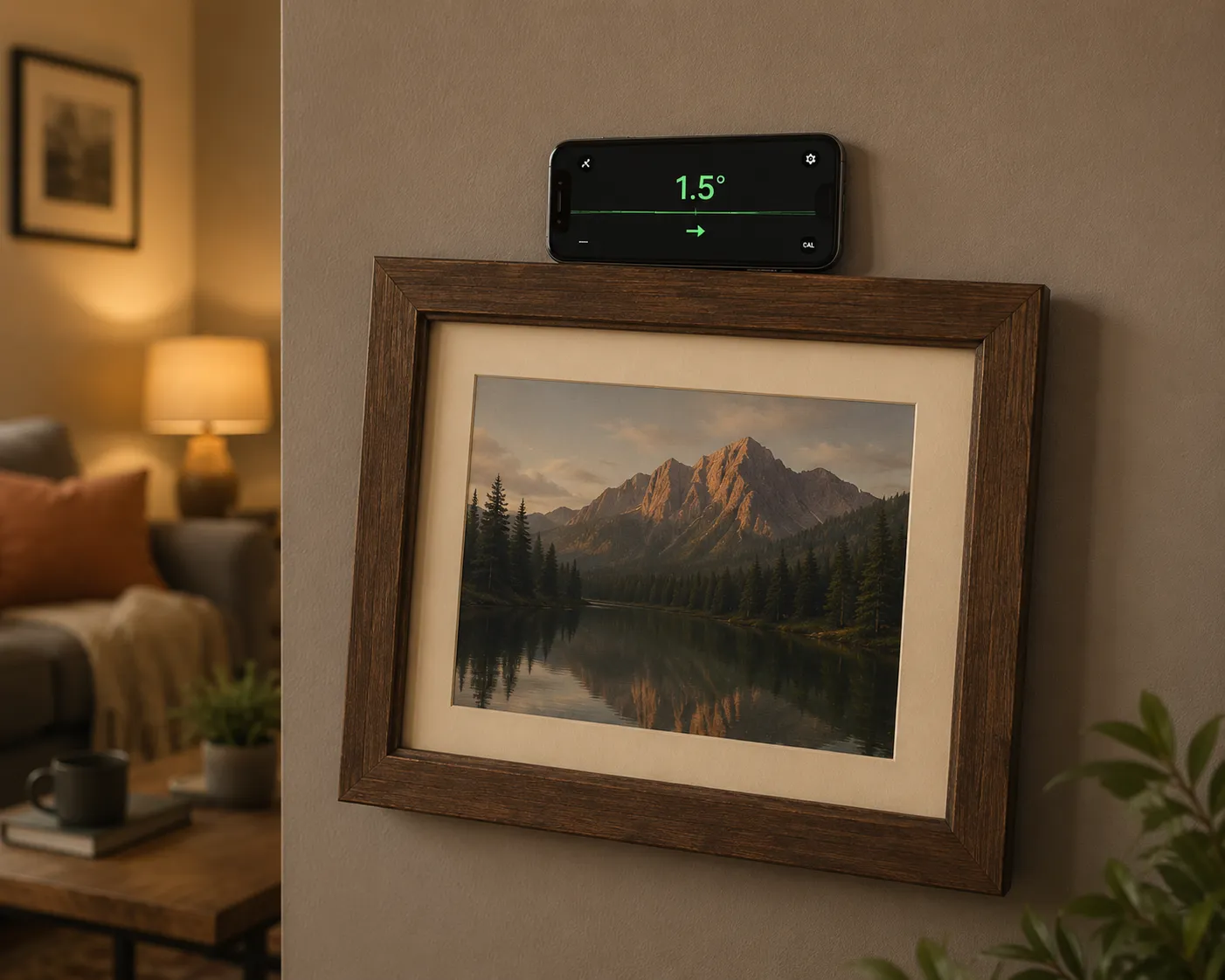
What the degree readout actually measures
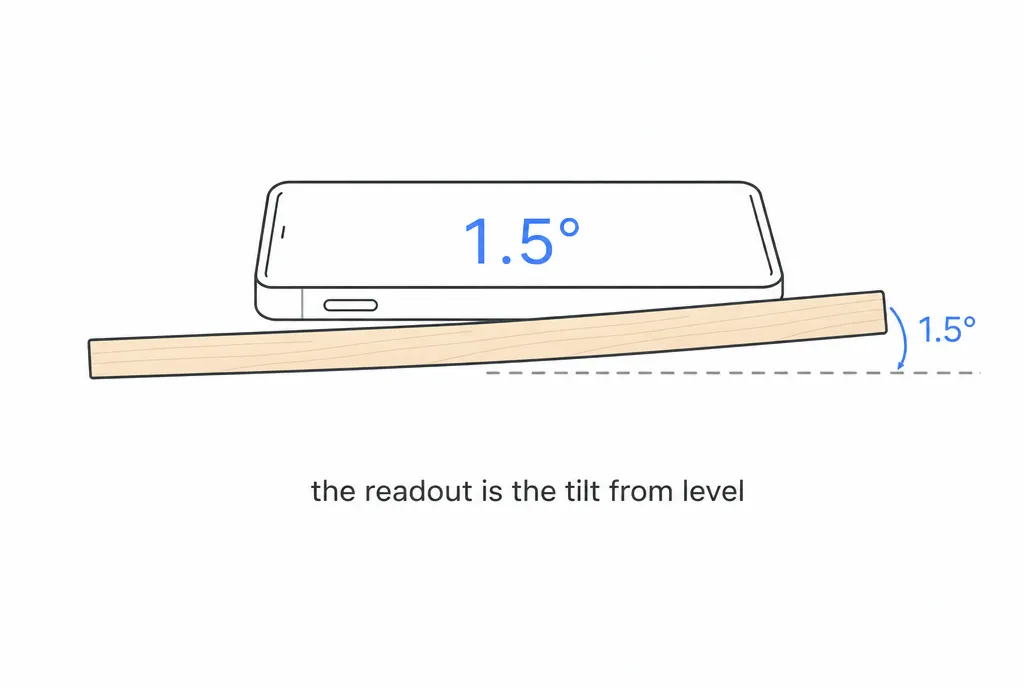
A level app turns your iPhone into a digital level: the accelerometer senses which way gravity pulls, and the app reports how far the phone’s edge is rotated away from horizontal. That’s the whole readout. 0.0° means level. Every other number is the size of the tilt — 0.3° is a whisper of a lean, 2.0° is a lean you can see, 5.0° is a ramp.
Note what the number is not: it isn’t inches, and it isn’t a percentage grade. It’s pure rotation. That matters because the same tilt produces very different visible errors depending on how long the object is — more on that below.
What “left” and “right” mean
Most level apps pair the number with a direction — a word like left, an arrow, or a bubble drifting to one side. The convention is simple: the direction names the high side.
- “Left 1.2°” means the left end of whatever the phone is resting on sits 1.2° higher than the right.
- To fix it, lower the left side or raise the right — rotate the object away from the labeled side.
- When you overshoot, the label flips: “left 0.4°” becomes “right 0.2°” as the high side changes.
If your app shows a bubble instead of a word, the same logic applies — the bubble drifts toward the high side, just like the air bubble in a spirit vial. If you’ve used a traditional vial, the mapping is familiar; here’s how to use a bubble level if you want that grounding.
How many degrees you can actually see
Whether a tilt is noticeable depends on the length of the object, because tilt turns into a vertical drop: drop = length × sin(angle). Small angle, long object, big drop.
Run the numbers:
- 1° over a 24” picture frame: 24 × sin(1°) ≈ 0.42”. Nearly half an inch of drop across a frame — obviously crooked from across the room.
- 0.5° over a 36” shelf: 36 × sin(0.5°) ≈ 0.31”. A third of an inch over three feet — most people spot it, especially next to a door frame or ceiling line.
- 0.5° over an 8” frame: about 0.07”. Invisible.
That’s why a small desk frame forgives a degree of error while a long floating shelf forgives almost nothing. As a working standard: get frames under 1°, and get anything over two feet long under 0.5° — ideally to 0.0–0.2°.
Leveling a frame or shelf: the workflow
- Hang or place the object roughly, then rest the phone flat on its top edge, long side along the length of the object.
- Read the number and the direction. Say it shows left 0.8° — the left side is high.
- Nudge the low side up (or the high side down) a few millimeters and watch the readout live. The number falls as you approach level.
- Stop when it reads 0.0°, take the phone off gently, and step back to confirm by eye against a nearby horizontal reference.
For a shelf on brackets, level the bracket line first, then confirm on the installed shelf — a bowed board can read differently at each end, so check the middle and both ends.
When 0.0° won’t happen — and how to fix it
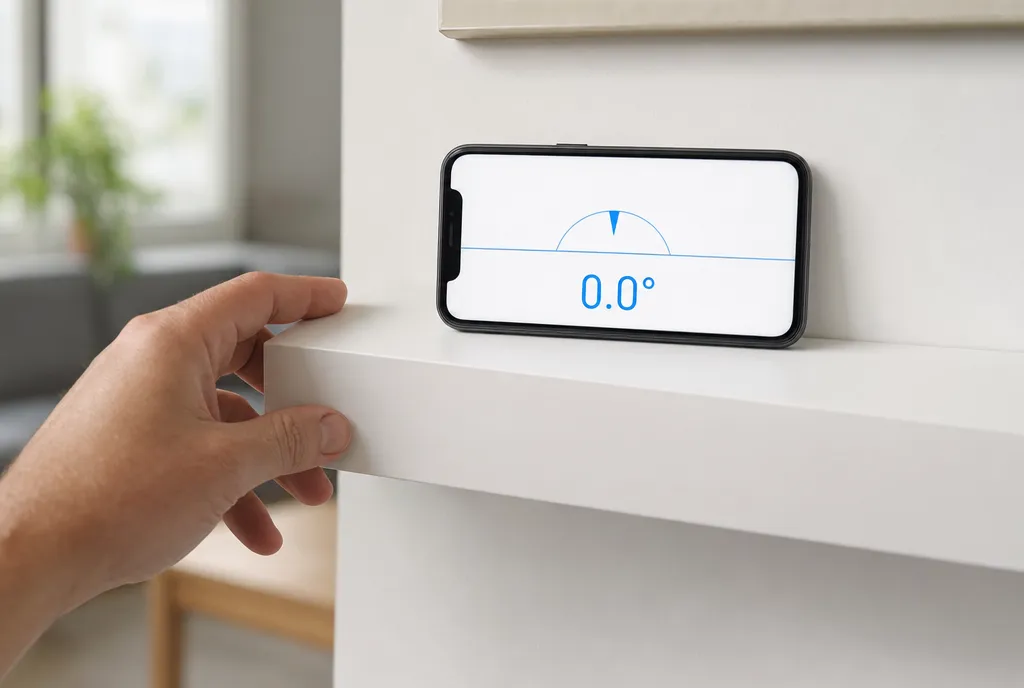
Sometimes the readout hovers at 0.1° or flickers and never settles at zero. Three usual causes:
- Sensor noise. Phone accelerometers jitter slightly by nature. A readout that flickers between 0.0° and 0.1° is level; don’t chase the last digit.
- Your case. A thick case, a raised camera bump, or a pocket-worn bulge tilts the phone relative to the surface it’s resting on. Take the case off for fine work, or rest the phone on the edge that sits flat.
- Calibration drift. Sensors develop small offsets over time. Fix it by calibrating: put the phone on a surface you trust — a countertop checked with a spirit level, or a still glass table — and use the app’s calibrate/zero function. From then on, readings are relative to that trued reference.
A quick sanity check for any level app: measure a surface, then rotate the phone 180° and measure again. If the two readings disagree, half the difference is your offset — and a calibration will clear it.
Frequently asked questions
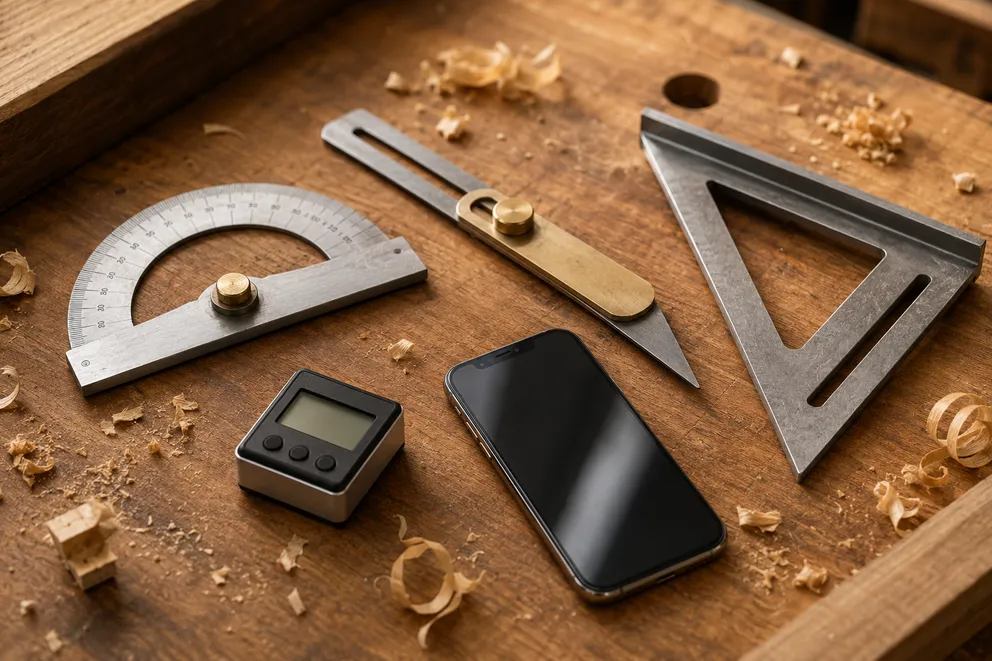
Angle Measuring Tools Compared: Which One Do You Need?
What each angle measuring tool does best — protractor, T-bevel, speed square, digital angle gauge, phone app, online protractor — and how to pick one.
How to Measure the Angle Between Two Walls
Three ways to measure the true angle between two walls — phone with zeroing, T-bevel and protractor, or camera mode — and turn it into the right miter cut.
Measure any angle,
right from your pocket.
Protractor turns your phone into a precision angle finder, level and inclinometer. Measure anything, anywhere.
Download the App